Register your AlphaOnChart Member account
Create a member account with Google or email to enter the member portal, then follow the 5-step journey: activate your trading account, enter your key, trade, get your Indicators and withdraw your rebate.
- 01
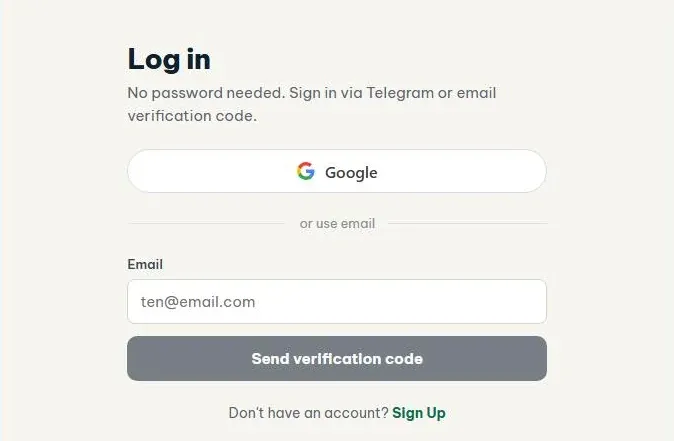
Open the sign-in page
Go to alphaonchart.app and click Sign in at the top of the page, or open alphaonchart.app/dang-nhap directly. One account covers the website and the member portal, where you manage keys, Indicators and trading rewards. No password is needed.
- 02
Choose Register
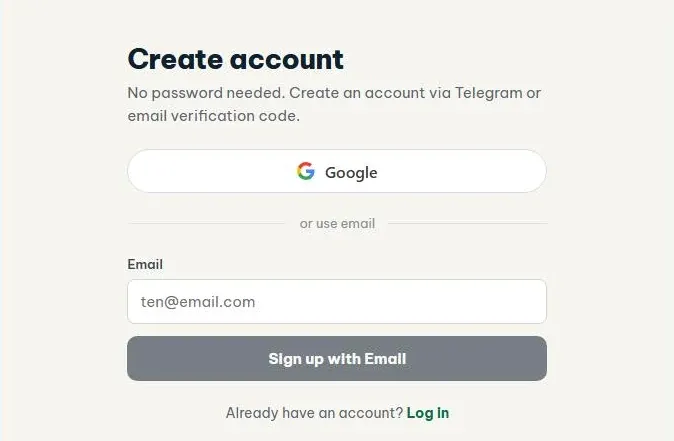
Under the sign-in box there is a line “No account yet? Register”. Click it and the heading changes to “Create account”. You can use Google (one tap, with the Google account already signed in to your browser) or email with a confirmation code; if a Telegram button is shown you can use Telegram too.
- 03
Enter your email
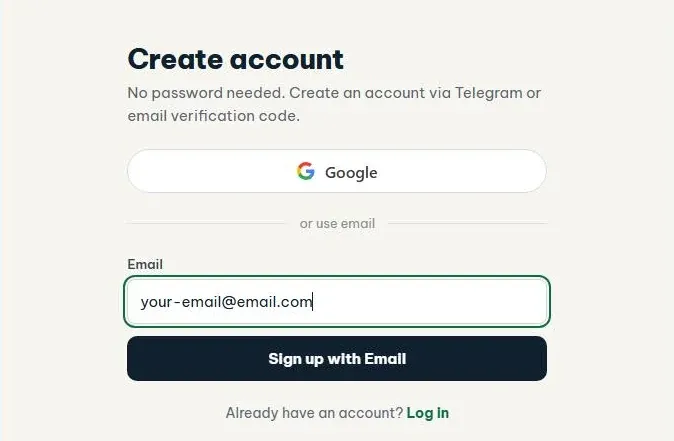
If you use email, type an address you can read and click “Register with email”. The confirmation code is sent to that address, and you use the same address to sign in next time.
- 04
Enter the 6-digit code
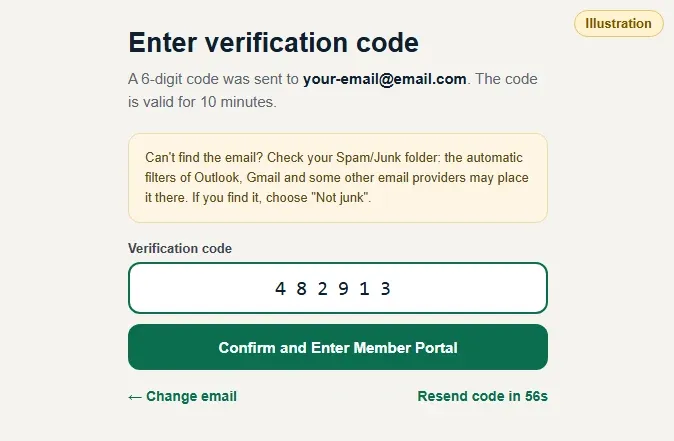
Open your inbox, take the 6-digit code (valid for 10 minutes), enter it in the “Confirmation code” box and click “Confirm and enter the member portal”. No email? Check Spam/Junk, or wait for the countdown to end and click “Resend code”. Typed the wrong email? Click “← Change email”.
- 05
Enter the portal and check your Journey
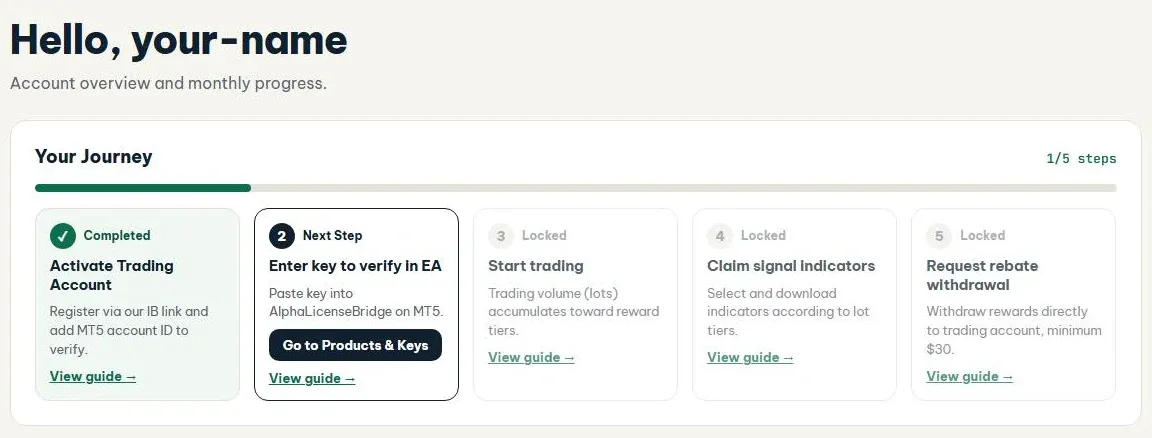
After confirming, you land on the Overview page of the member portal. The “Your journey” card shows which of the 5 steps you are on. A new account starts at 0/5 and the first step is “Activate trading account”.
- 06
Open a broker account through the IB link
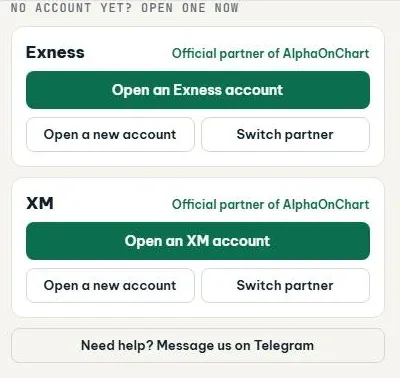
To earn rewards you need a broker account (Exness or XM) registered through the AlphaOnChart IB link, or one whose IB partner has been switched to AlphaOnChart. Follow the guide for your broker; the XM guide is in the Guides section. If your broker account already belongs to the AlphaOnChart IB, skip this step.
 See the Exness account guide
- 07
Continue to trading account activation
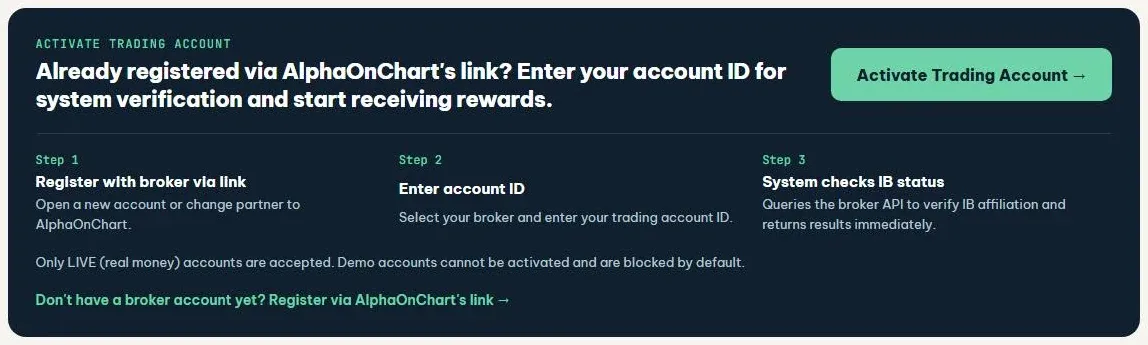
Once you have a broker account, return to the member portal and add your trading account ID so the system can verify it. The next guide walks you through every step.
 Read the activation guide