Verify your MT5 account with the AlphaLicenseBridge EA
Verify once to unlock the Robot EA and the Premium indicator library. The EA only checks the issued key against the server; it has no trading permission and never reads your password.
- 01
Why verification is needed
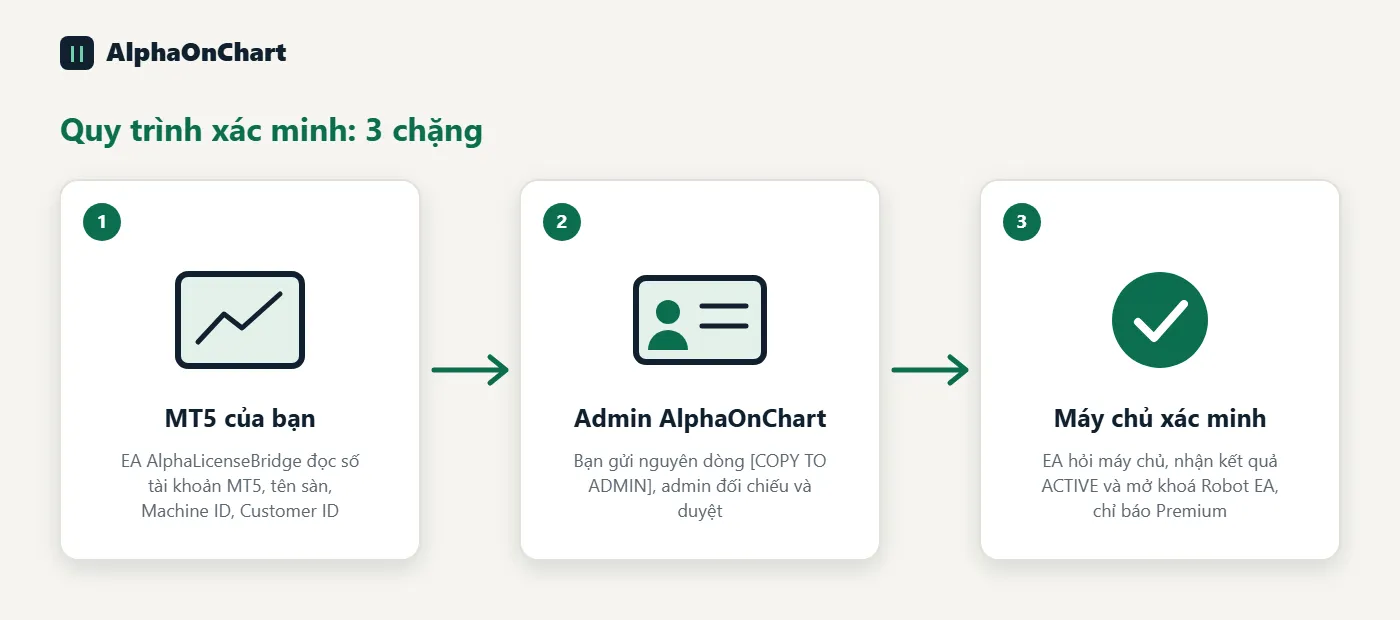
The system needs to know which member your MT5 account and computer belong to, so it can unlock the Robot EA and the exclusive Premium indicator library. This way the benefits are only for members registered through AlphaOnChart, and you do not have to enter a key by hand for each indicator. You only need to do this once per computer. Do it again when you change machine, change trading account or reinstall MT5. Requirement: you must be a VIP member. Trial accounts cannot use this yet.
- 02
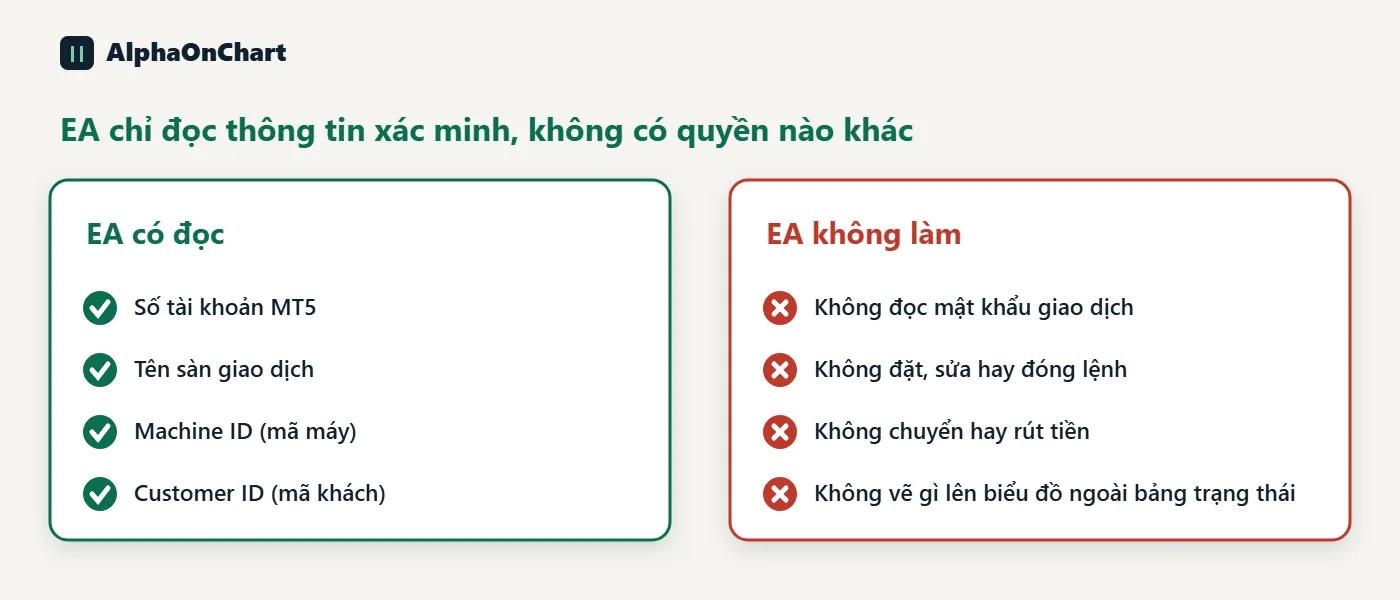
Our safety promise: it only verifies the key issued on the server
AlphaLicenseBridge only reads verification information and sends it to the server to check against the key issued to you: • It does read: MT5 account number, broker name, Machine ID, Customer ID • It does not read your trading password or investor password • It does not place, modify or close orders, and does not transfer or withdraw funds • It draws nothing on the chart except a status panel in the corner The server and the admin decide approval and permissions; the EA never grants access itself. So this process creates no security risk for your trading account.
- 03
Preparation
• MT5 on Windows, signed in to your trading account • The AlphaLicenseBridge.ex5 file: contact the admin via Telegram @alphaonchart to get it • A stable internet connection • A Telegram or MQL5 account to send the verification code to the admin
Message us on Telegram to get the AlphaLicenseBridge.ex5 file → - 04
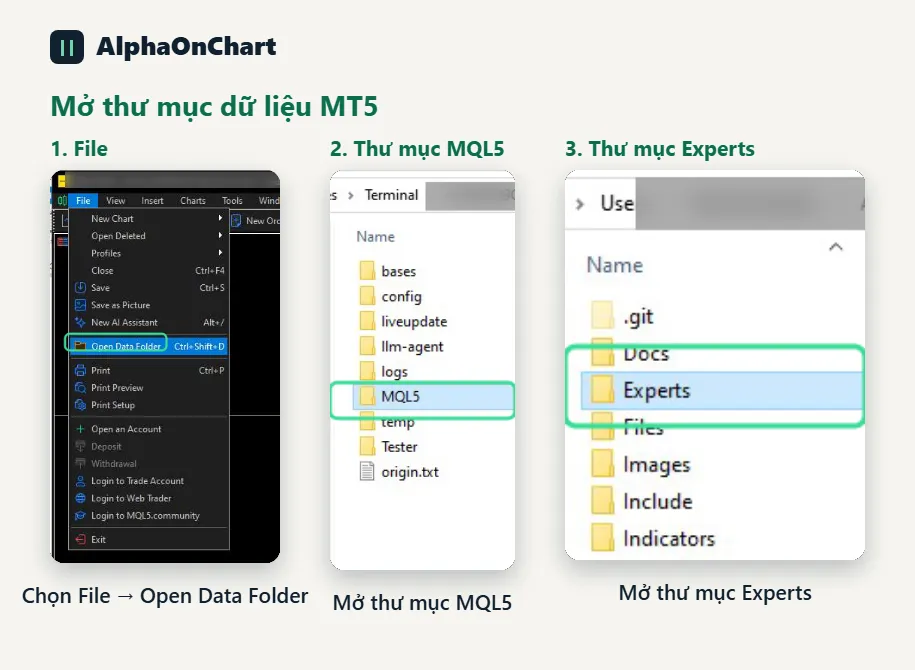
Open the MT5 data folder
In MT5 choose File → Open Data Folder, then open MQL5 → Experts.
- 05
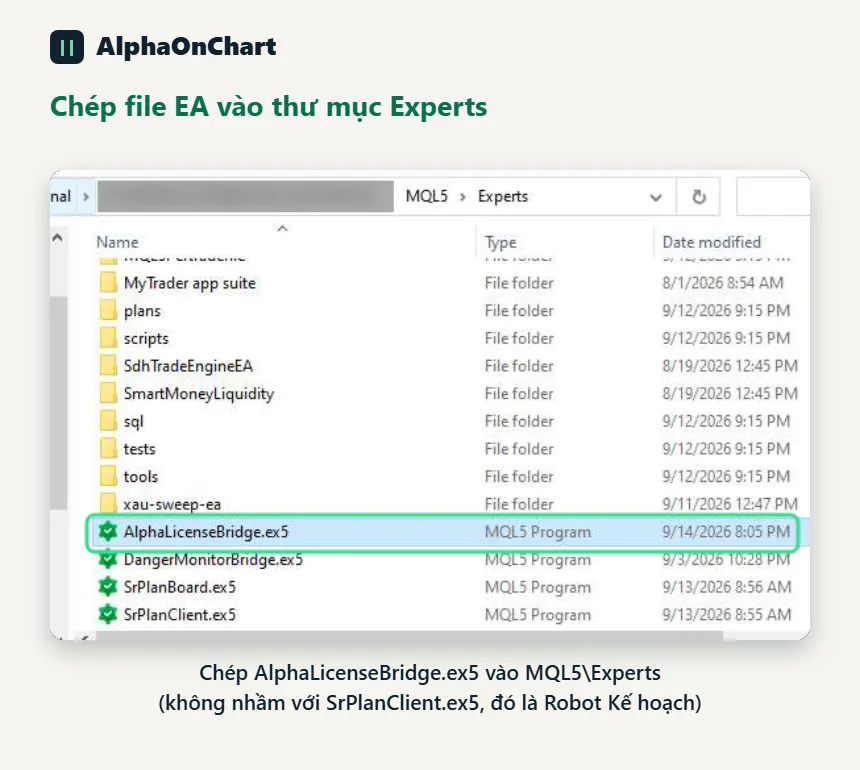
Copy the EA file into the Experts folder
Copy the AlphaLicenseBridge.ex5 file into the MQL5\Experts folder, then go back to MT5. Note: the correct file name is AlphaLicenseBridge.ex5. Do not confuse it with SrPlanClient.ex5 (the Plan robot, not the verification EA).
- 06
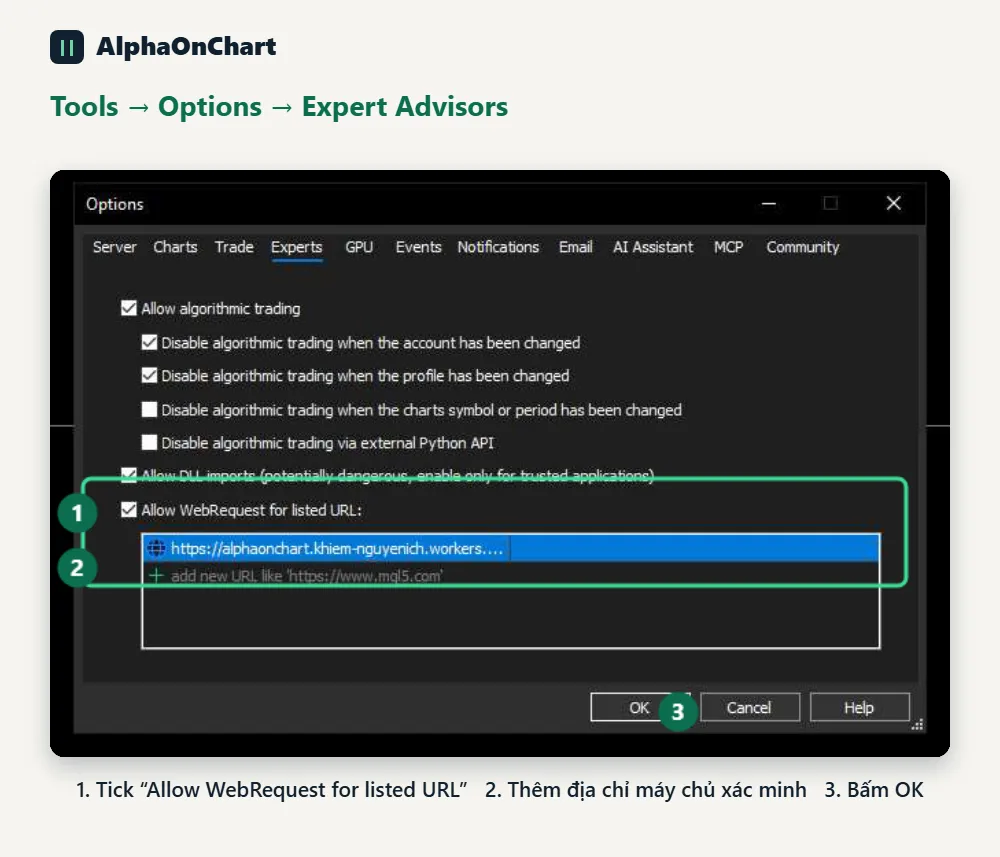
Allow WebRequest (the step people get wrong most)
Choose Tools → Options → Expert Advisors tab: 1. Tick “Allow WebRequest for listed URL” 2. Click the + sign and paste the server address exactly, with no extra spaces or trailing /: https://alphaonchart.khiem-nguyenich.workers.dev 3. Click OK If you skip this step, the EA reports error 4014 “WebRequest not allowed”.
- 07
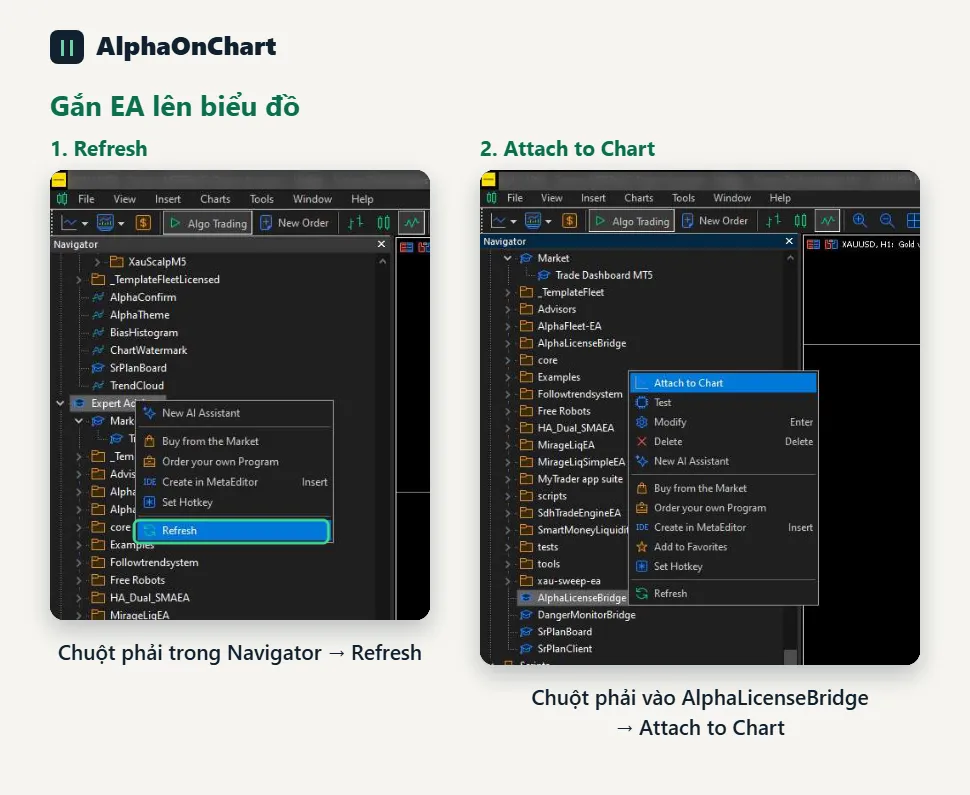
Attach the EA to the chart
In Navigator → Expert Advisors, right-click and choose Refresh. When you see AlphaLicenseBridge, right-click and choose Attach to Chart (or drag it onto any chart).
- 08
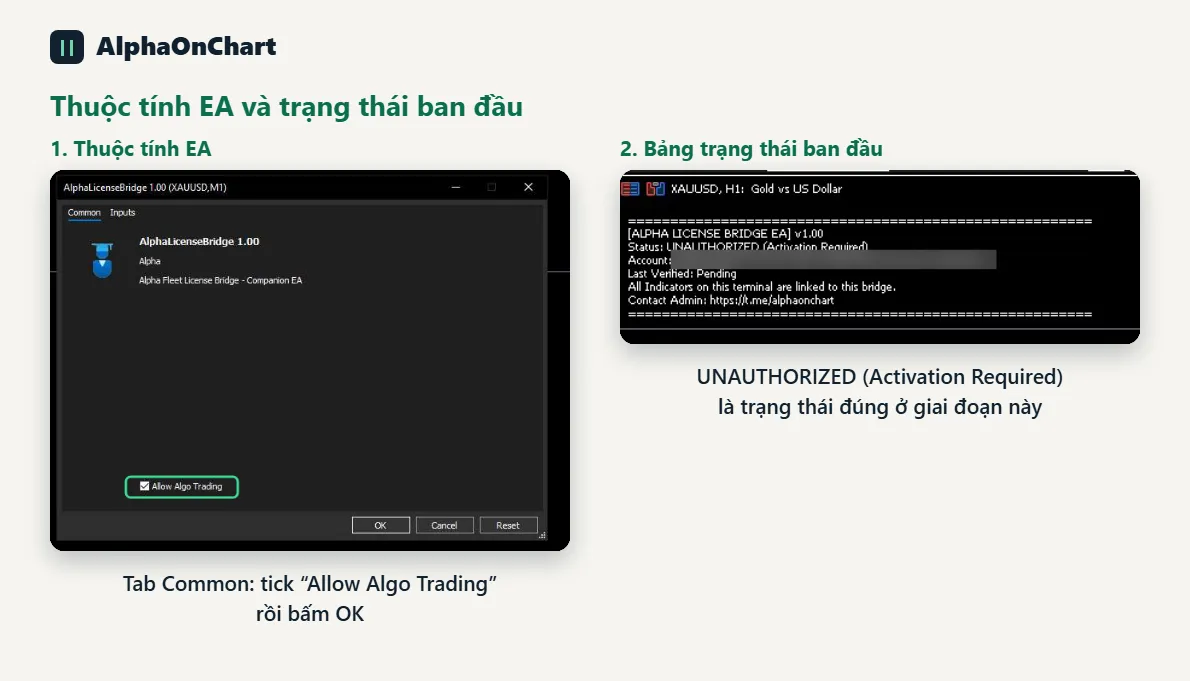
Set the EA properties
In the properties window, on the Common tab tick “Allow Algo Trading” and click OK. The EA has only one input, the check interval, 15 minutes by default (minimum 5), so leave it as is. After attaching, the status panel in the left corner shows UNAUTHORIZED (Activation Required). This is the correct state at this stage, not an error.
- 09
Get the [COPY TO ADMIN] line
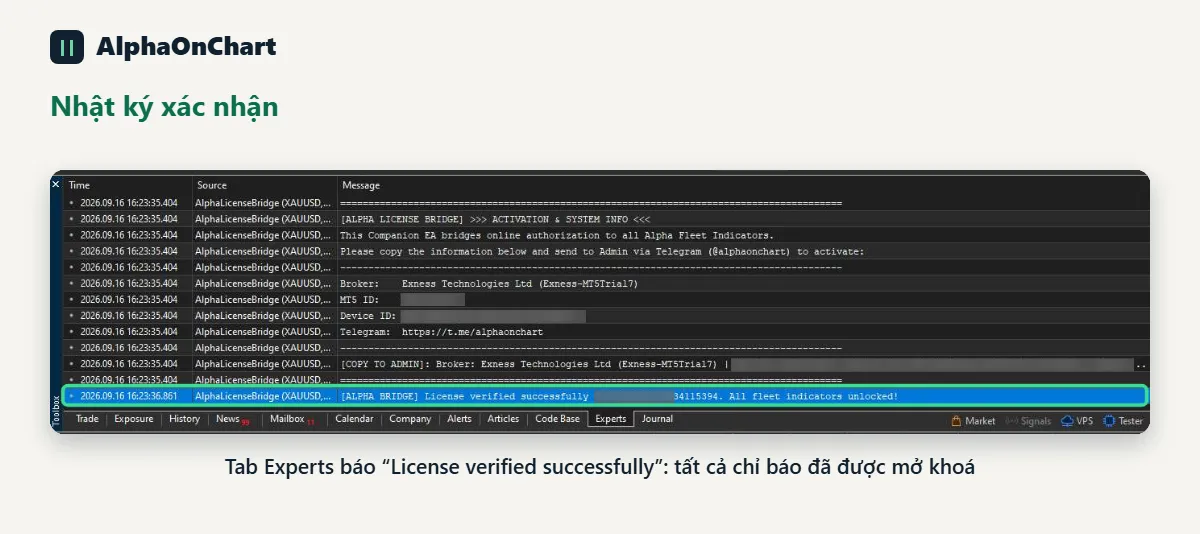
Open the Toolbox window (View → Toolbox or Ctrl+T) and choose the Experts tab. Find the line starting with [COPY TO ADMIN]: and copy the whole line verbatim, without editing, trimming or adding characters. This line contains the broker, MT5 ID, Device ID, Customer ID and the admin's Telegram address.
![Get the [COPY TO ADMIN] line](/_astro/alb-copy-line.mtDmqCVb_2sKqU9.webp)
- 10
Send it to the admin and wait for confirmation
Paste the whole line you copied and send it through one of two channels: • Telegram: https://t.me/alphaonchart • MQL5: https://www.mql5.com/en/users/khiemni/news The admin will let you know once approved.
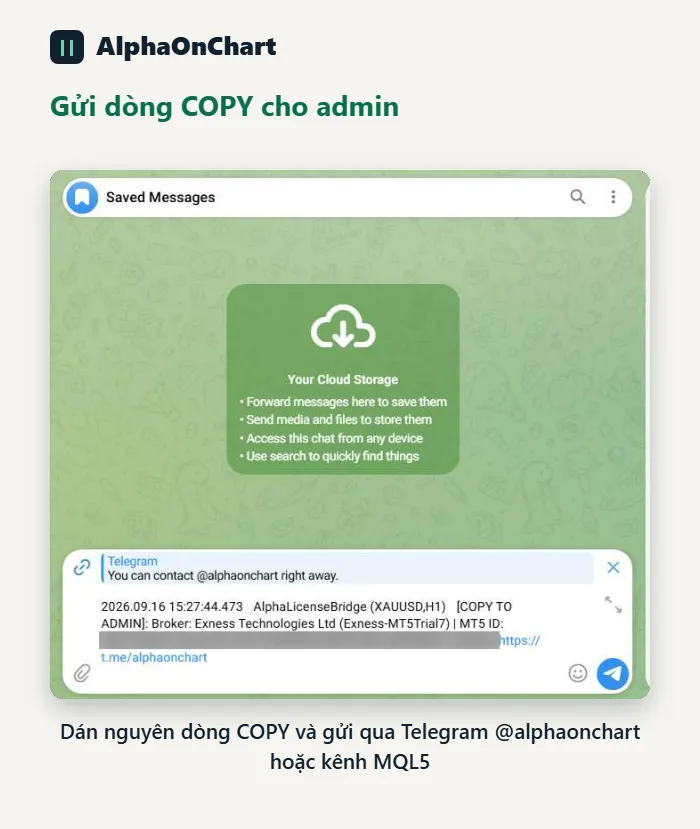 Send the COPY line via Telegram →
 - 11
Re-attach the EA and check the result
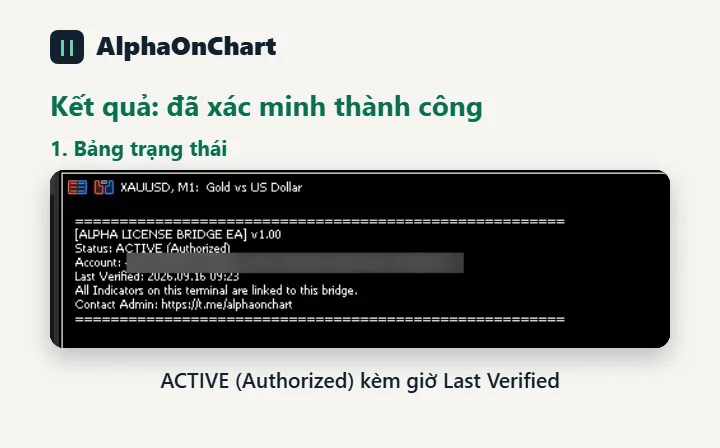
When the admin confirms approval, remove the EA from the chart and attach it again. Check: • The Experts tab has a successful-verification line • The status panel shows ACTIVE (Authorized) with the Last Verified time Then contact the admin to have the Robot EA and the indicators matching your membership level activated.
- 12
Check the verification log
In the Experts tab, the last line says “License verified successfully”: the license has been verified and all indicators in the Alpha Fleet are unlocked.
- 13
What to remember after verification, and troubleshooting
To remember: • Keep the EA running on the chart. The EA asks the server every 15 minutes; if you turn the EA off, the indicators lock once more than 2 hours have passed since the last successful verification • A network loss does not lock immediately: there is a 2-hour grace period • The default limit is 2 computers and at most 5 indicators on at the same time • If you change machine, change account or reinstall MT5: start over and tell the admin Common problems: • Error 4014 or WebRequest not allowed: redo the WebRequest step and add the correct address • Network timeout: check your internet or firewall • HTTP 403: resend the COPY line or ask the admin about your profile • Still UNAUTHORIZED after approval: remove the EA and attach it again • EA not visible in the Navigator: right-click → Refresh and check the file is in MQL5\Experts • COPY line not visible: open the Toolbox (Ctrl+T) and check that the Algo Trading button is on